Features
See Servicebook at work
Four everyday moments, from a customer’s first tap to your confirmed schedule.
01 · Booking link
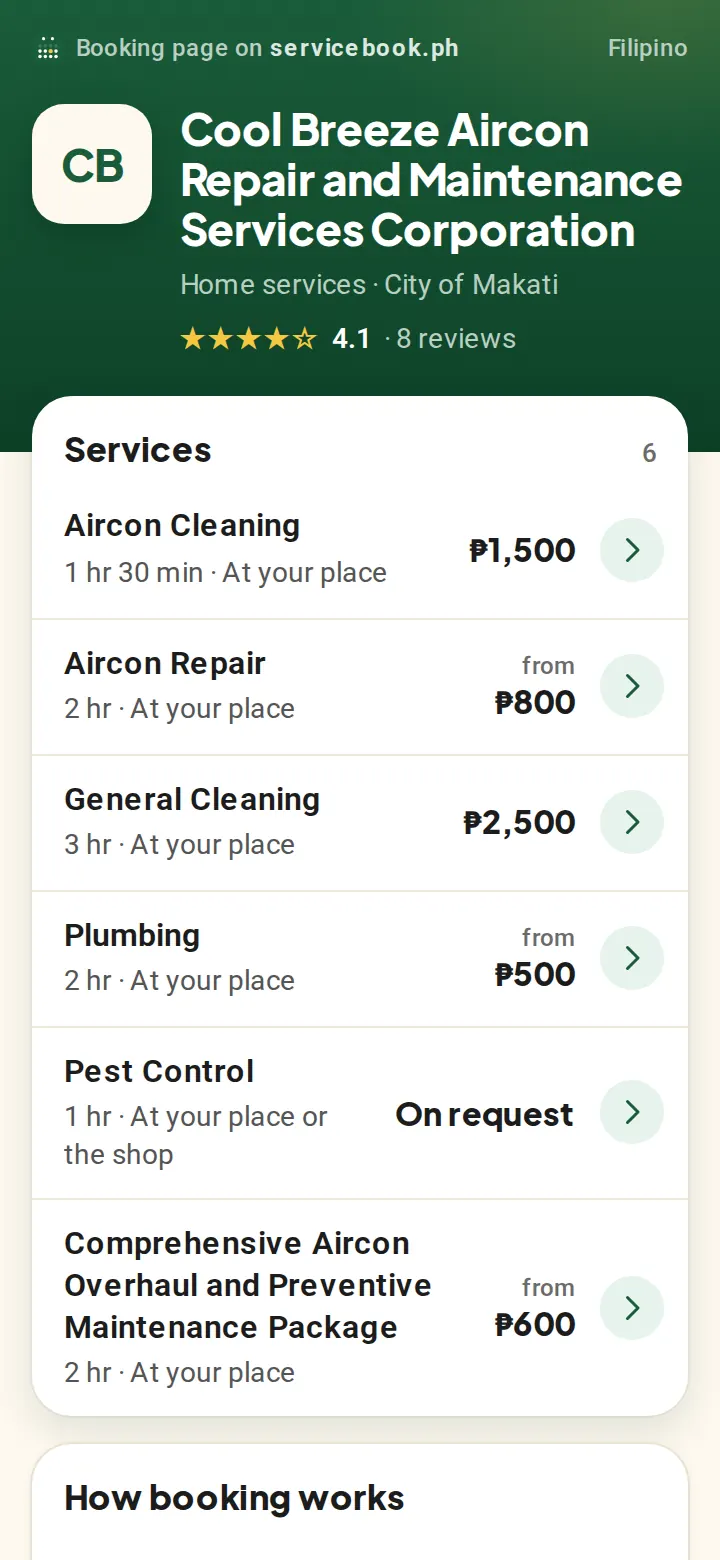
Customers book from your link
They open your link in any browser, pick a service, a day and an open time, and send the request. No app and no account. Only open times show, so nobody books a taken slot.
02 · Requests
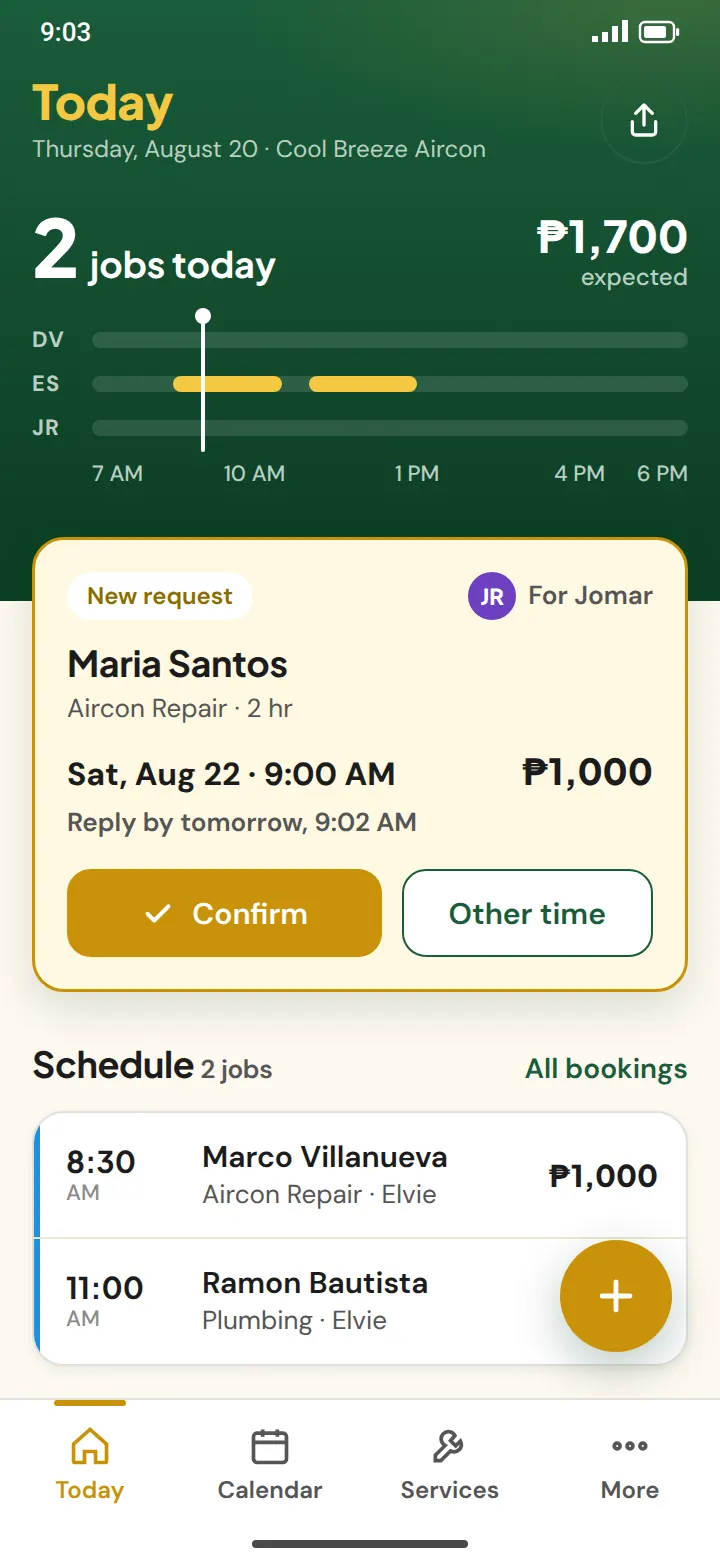
The request arrives, and one tap confirms it
Every request lands on Today with the service, the time and the price, and your phone gets a notification. Confirm in one tap or suggest another time. The booking moves to your schedule, and your customer sees your answer on their booking page.
03 · Deposits
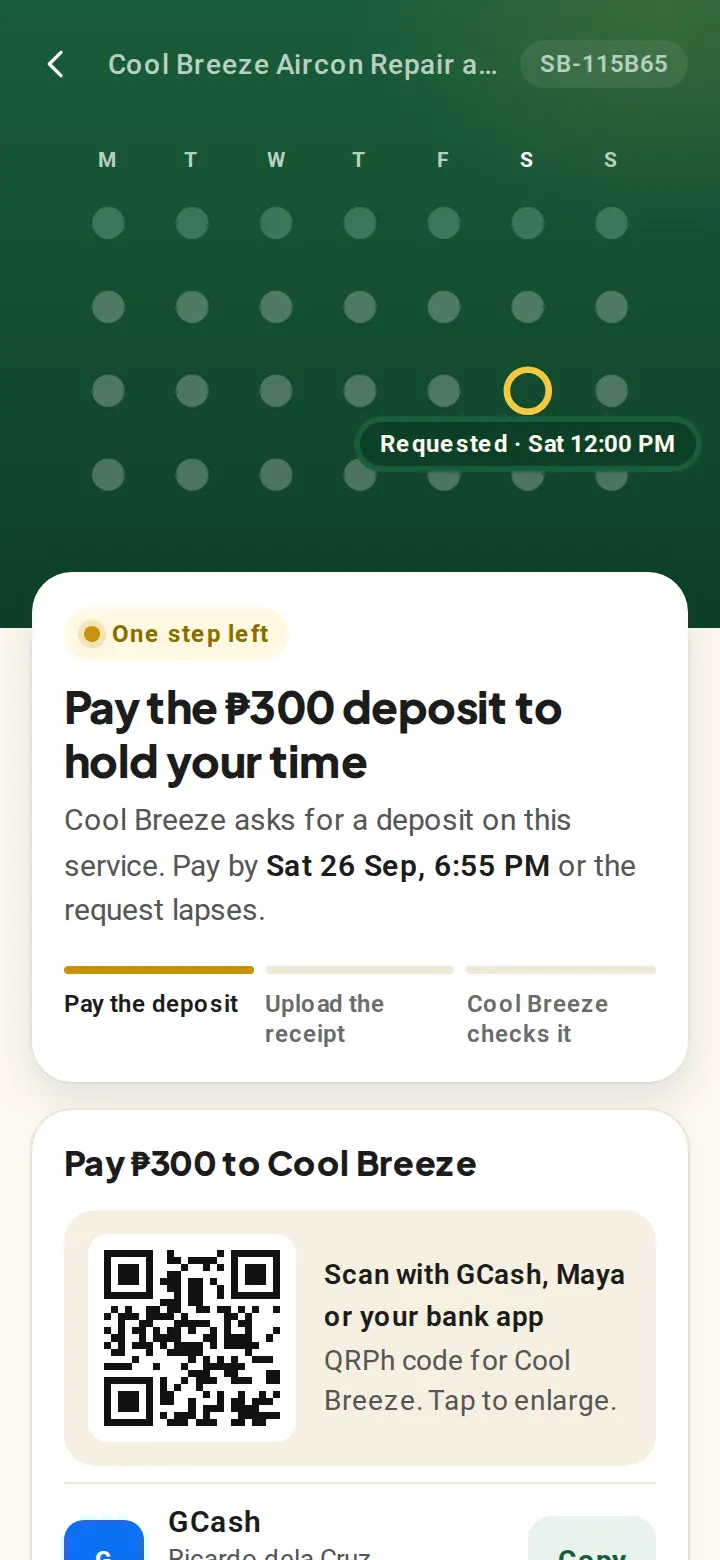
Deposit receipts, checked and confirmed
Ask for a deposit on any service. Customers pay you by GCash, Maya or QRPh and upload the receipt on their booking page. You check it in the app, and verifying it confirms the booking. Free includes 3 deposit bookings a month; Pro has no limit.
04 · Teams
“Anyone available” finds someone free
Customers can pick a person or “anyone available”. Servicebook gives the request to a team member who does that service and is free at that time, the one with the fewest bookings that day, and their phone gets the notification too.
Team plan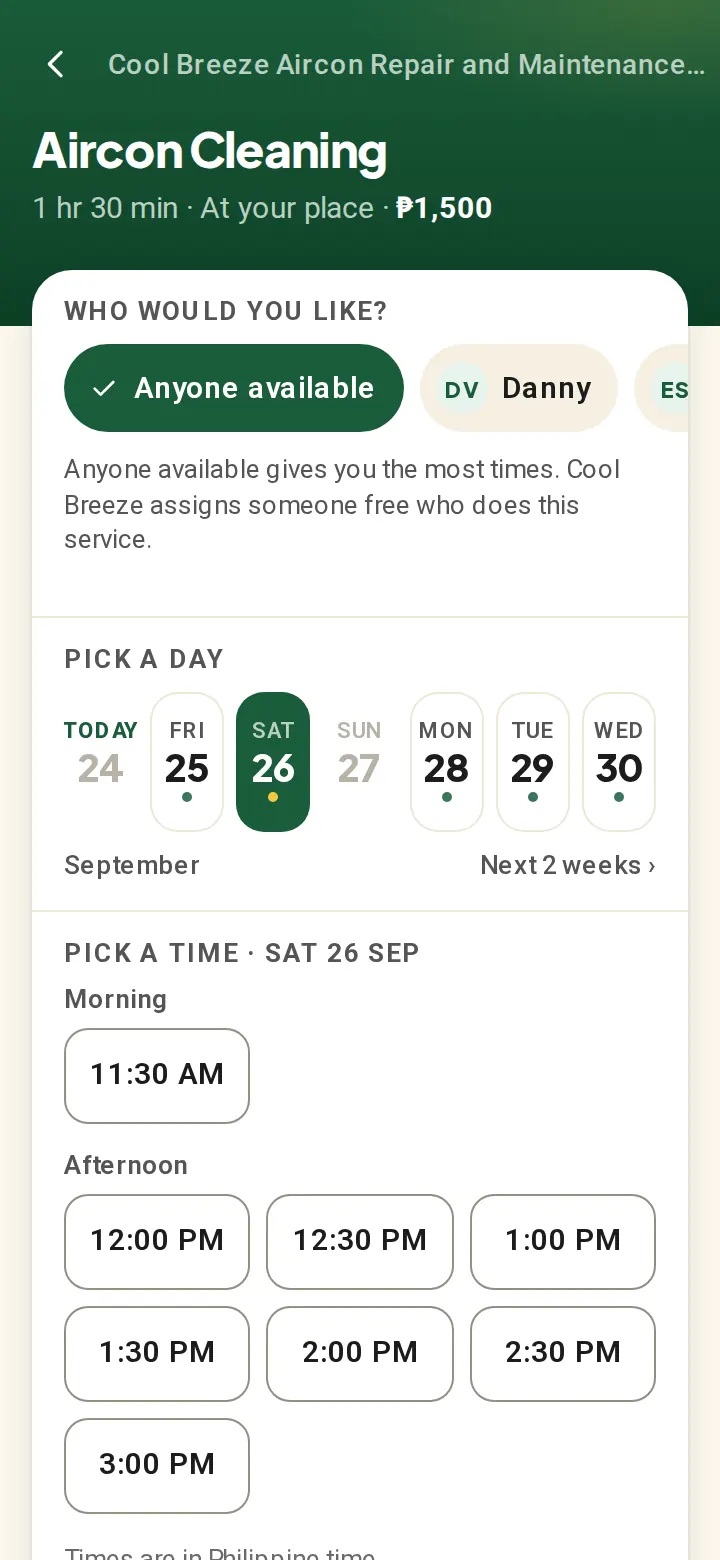
Everything it does
Every feature, through your working day
All of this is on the free plan unless it’s marked.
Get booked
- Your own booking pageYour services, prices, reviews and a Call button, at servicebook.ph/your-name.
- Only open timesCustomers see only the times you’re free, so nobody books a taken slot.
- Book up to 90 days aheadYou choose how far ahead customers can book: two weeks, a month, two months or three.
- No app, no accountCustomers book with a name and mobile number, plus an address for home visits.
- You confirm every requestA request waits for your answer and lapses after 24 hours (48 with a deposit).
- Share your link anywhereSend it by Messenger, Viber or SMS, or copy it, with a ready-made post.
- QR code and posterShow your booking QR from the app, or print a poster for the shop or the van.
- Edit your pageYour name, category, city, link, a short description, and whether your phone number shows.
- Reviews on your pageYour average rating and latest reviews, shown with the customer’s first name and initial.
- Customers reschedule themselvesFrom their booking link, up to your minimum notice. The new time comes back to you to confirm.
- Customers cancel themselvesAlso up to your minimum notice. The time opens up again and you’re told.
- Add to calendarCustomers save the booking to their phone’s calendar from their booking page.
Your day
- TodayYour next job, today’s jobs, what you expect to earn and the week ahead, on one screen.
- One-tap confirmConfirm a request from Today, or suggest another time. A countdown shows how long you have.
- Needs attentionClashes, requests about to lapse, receipts to check, refunds due and jobs to close out.
- Day and week calendarEvery booking in colour-coded blocks, filtered by team member when you have staff.
- All your bookingsSearch by customer, phone or service, and filter by status, week or month.
- Every booking in fullCustomer, service, time, price, payment, address, notes and everything that happened to it.
- Add bookings yourselfWalk-ins and phone bookings, at an open time or one you pick, checked for clashes.
- Reschedule, decline or cancelMove a booking to another open time, or decline with a reason your customer sees.
- Done or no-showClose out each job when it’s over, or mark a customer who didn’t come.
- Works offlineSee your day and confirm, mark paid or close out jobs without signal. It syncs later.
- Every phone in stepYour phones and your team’s stay up to date with each other, about once a minute.
- NotificationsNew requests, cancellations, receipts to check, and a reminder a day and two hours before each job.
- A setup checklistToday shows what’s left to set up, and ticks it off as you go.
Getting paid
- GCash and Maya detailsCustomers see your account name and number, ready to copy.
- QRPhUpload your QR, and customers scan it with GCash, Maya or their bank app.
- Deposits on any service Free: 3 a month · Pro: unlimitedA fixed amount or a percentage, shown to customers before they book.
- Receipts from customersCustomers upload a photo of their payment, and its reference, on their booking page.
- Check each depositVerify the receipt, or reject it with a reason so the customer can send it again.
- Confirmed when it’s verifiedVerifying a deposit can confirm the booking for you, service by service.
- Confirm without the depositWaive it on purpose and confirm anyway. The customer’s page says no deposit is needed.
- Refunds and forfeitsRecord a refund, with a reference if you have one. A no-show can keep the deposit.
- Mark as paidRecord payment by GCash, Maya or cash, with the amount and an optional reference.
- See what’s been paidA finished booking shows whether it’s paid, how, and its payment history.
- Payment recordsDeposits and refunds by week or month: money in, refunds out and what still needs checking.
Talking to customers
- Messages from your own phoneReady-written messages open in your SMS app or Viber, sent from your own number.
- You’re bookedAfter you confirm, send the day, time and their booking link in one tap.
- ReminderA friendly reminder before the appointment.
- Running lateLet a customer know you’re a few minutes behind.
- Booking linkSend a customer their booking page again.
- PaymentHow to pay you, with your GCash details.
- Review requestA link to review a finished job. Customers can review for 30 days afterwards.
- Suggest another timeSend a link to that service’s open times when a request doesn’t suit you.
- Refund sentTell a customer their deposit is on its way back.
- Their own booking pageEvery message links to it: status, how to pay, and changes as you make them.
- In English or TaglishCustomer messages and pages follow the language you choose for your business.
Your team Team plan · 14 days free
- Invite by link or QRAdd staff or admins with an invite that lasts 7 days.
- Up to 10 team membersEach with their own services and weekly hours.
- RolesOwners and admins run the business. Staff handle their own bookings and hours.
- Who sees whatStaff see only their own bookings, unless you let them see the whole team’s.
- Staff coloursEach person has their own colour on the calendar, always shown with their name.
- Anyone availableThe request goes to a free team member who does that service, whoever has fewest bookings that day.
- Reassign a bookingGive a booking to another free team member at the same time. They’re notified.
- When someone leavesTheir upcoming bookings land in Needs attention for you to give to someone else.
Your business
- Services and pricesFixed prices, “from” prices, or a price you quote after you’ve seen the job.
- Lengths and buffersFrom 15 minutes to 12 hours, with time before and after for travel or cleanup.
- Where you workAt your place, the customer’s, or either. Home visits ask for an address.
- Weekly hoursUp to three time blocks a day, and copy a day to the rest of the week.
- Special days and time offClose a date, change its hours, or block out time off.
- Booking rulesChoose your time slots and how much notice you need before a booking.
- Customers and regularsEvery customer’s bookings and your notes. Regulars are marked suki.
- Several businesses, one phoneSwitch between businesses you own or work in.
- English or TaglishUse the app in English or Taglish. Your booking page switches between English and Filipino.
- Refer another providerShare your link. Once they’ve added a service and their hours, you both get 14 extra days of Team.
- Upgrade in the appMove to Pro or Team whenever you need it, paid through your app store.
- Sign in with an email codeNo password to remember.
- Delete your accountFrom Settings, confirmed with a code. How it works.
Servicebook never texts your customers. Every message they get is one you send from your own phone.
Start taking bookings today
Set up your page, share your link and confirm your first request, all from your phone.
 Coming soon
 Coming soon
No credit card.